
- What is the Affiliate Code Tag Feature?
- Before and After Example
- Requirements
- Step by Step Setup
- Understanding the Code Apply To URL Options
- Frequently Asked Questions
- Does the affiliate tag work on all books automatically?
- What if I already have affiliate links added manually to individual books?
- Does this work with Amazon Associates from different countries?
- Will the tag appear on all my Buy on Amazon buttons?
- What if I have multiple websites using Books Gallery?
- Does the affiliate tag work with the free version of Books Gallery?
- How do I check how much I am earning from affiliate clicks?
- Troubleshooting
- Related Documentation
- Related Blog Articles
- Need Help?
- ▶ Auto-playing demo
What is the Affiliate Code Tag Feature? #
The Amazon Associates affiliate code tag is one of Books Gallery’s most powerful time-saving features. Instead of manually adding your Amazon Associates tracking ID to every single book link – which is tedious and error-prone for large catalogs – you enter your affiliate tag once in the plugin settings and it automatically appends to every Amazon buy link across your entire gallery.
This means every book in your gallery will automatically earn you affiliate commissions when visitors click the buy link and make a purchase on Amazon – without any manual URL editing required.
How it works:
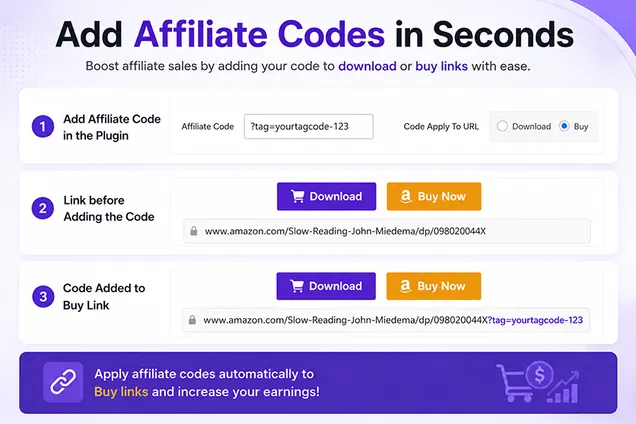
You enter your Amazon Associates affiliate code tag once in Books Gallery settings. Every time a visitor clicks a Buy on Amazon button in your gallery, your affiliate tag is automatically appended to the URL – turning a regular Amazon link into an affiliate link that earns you commission.
Before and After Example #
| URL | Earns Commission? | |
| Without tag | https://amazon.com/dp/B001234567 | No |
| With tag | https://amazon.com/dp/B001234567?tag=yourtag-20 | Yes – automatically! |
Requirements #
- Books Gallery Premium plan (Professional or Enterprise)
- An active Amazon Associates account – sign up free at affiliate-program.amazon.com
- Your Amazon Associates tracking ID – found in your Associates dashboard
Don’t have an Amazon Associates account yet?
Visit affiliate-program.amazon.com to sign up for free. Approval is usually instant. Once approved you will find your tracking ID in your Associates dashboard – it looks like yourname-20.
Step by Step Setup #
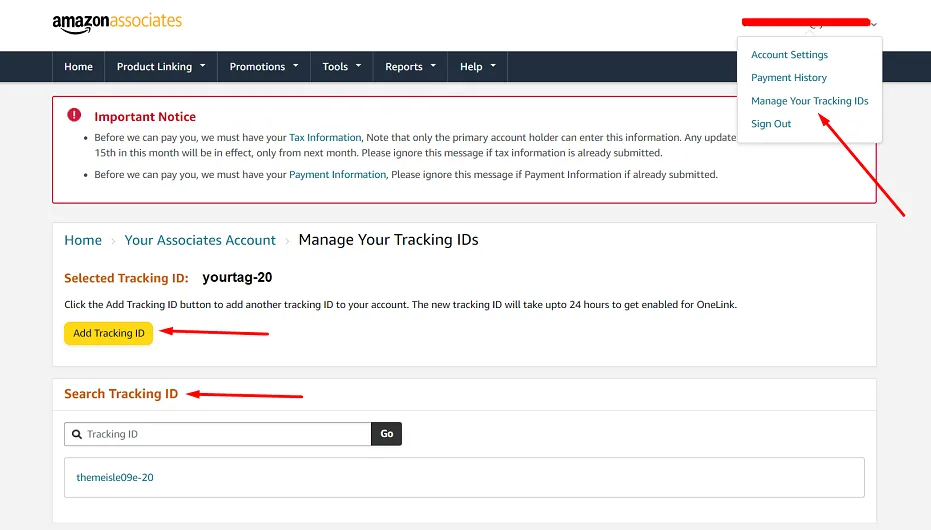
Step 1 – Find Your Amazon Associates Tracking ID #
- Log in to your Amazon Associates account at affiliate-program.amazon.com
- Look at the top of the page – your tracking ID appears in the header bar
- It looks like this: yourname-20 (always ends in -20 for Amazon US)
- Copy your tracking ID – you will paste it into Books Gallery settings
Multiple tracking IDs:
Amazon Associates allows you to create multiple tracking IDs for different websites or campaigns. If you have multiple sites, make sure you copy the tracking ID associated with the website where Books Gallery is installed.
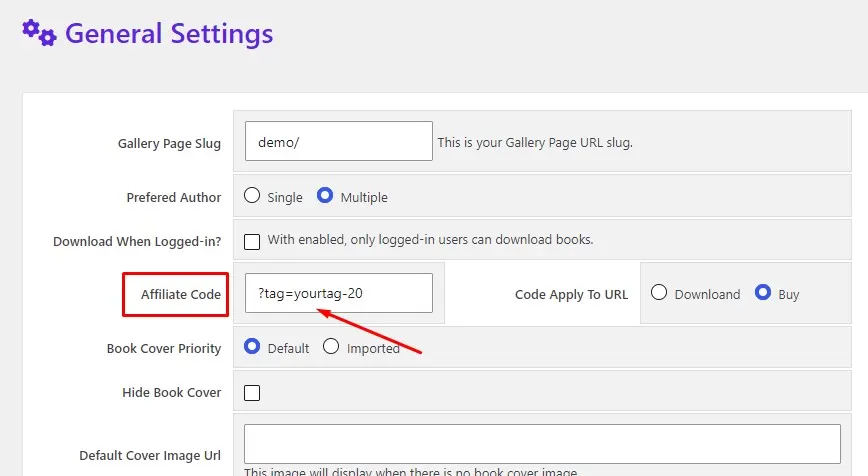
Step 2 – Enter Your Tag in Books Gallery Settings #
- Log in to your WordPress admin dashboard
- Go to WBG Books in the left sidebar
- Click General Settings
- Scroll down to find the Affiliate Code field
- Enter your Amazon Associates tracking ID in the field – for example: yourtag-20
- Select Buy from the Code Apply To URL options – this applies your tag to all buy links
- Click Save Settings
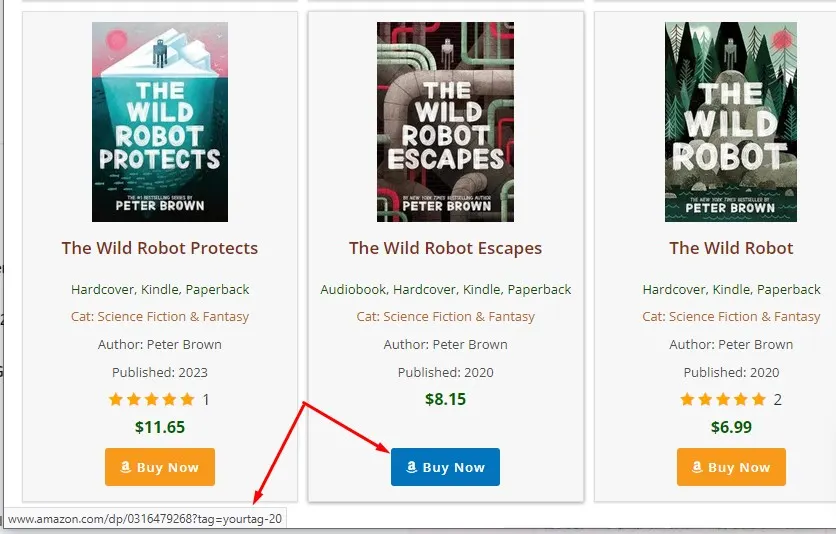
Step 3 – Verify the Tag is Working #
- Go to your book gallery on the front end of your website
- Click on any book to open the book detail popup
- Hover over the Buy on Amazon button
- Look at the URL in the bottom left of your browser – it should contain ?tag=yourtag-20 at the end
- If you see your tag in the URL – the feature is working correctly
Quick verification tip:
Right-click any Buy on Amazon button in your gallery and select Inspect or Copy Link Address. Your Amazon Associates tag should appear at the end of the URL as ?tag=yourtag-20
Understanding the Code Apply To URL Options #
When setting up your affiliate code tag you will see two options for where to apply it:
| Option | What it does | Best for |
| Download | Appends your tag to Download button links only | Digital download affiliate programs |
| Buy | Appends your tag to Buy Now / Buy on Amazon button links only | Amazon Associates and retail affiliate programs |
Recommended setting:
Select Buy for Amazon Associates – this is the most common use case. Your affiliate tag will automatically append to every buy button link across your entire book gallery.
Frequently Asked Questions #
Does the affiliate tag work on all books automatically? #
Yes. Once you enter your affiliate tag in General Settings and click Save, the tag automatically appends to every buy link across your entire gallery – including books you add in the future. You never need to manually add the tag to individual book links.
What if I already have affiliate links added manually to individual books? #
If you have already manually added affiliate URLs to individual books (including your tag in the link), the automatic tag will append a second time – creating a duplicate tag in the URL. To avoid this, remove the manual tag from individual book URLs and let the automatic feature handle it globally. You can update book links by going to WBG Books, opening each book, and removing the ?tag= portion from the buy link URL.
Does this work with Amazon Associates from different countries? #
The automatic tag feature works with any Amazon Associates tag regardless of country. However note that Amazon runs separate affiliate programs for different regions – amazon.com (US), amazon.co.uk (UK), amazon.de (Germany) etc. If your books link to multiple Amazon regions, you will need to add separate links for each region manually since each region has its own tracking ID. The automatic tag only appends to links from the same Amazon domain.
Will the tag appear on all my Buy on Amazon buttons? #
Yes – all Buy on Amazon buttons across your entire gallery will automatically include your affiliate tag once it is set in General Settings. This includes books displayed in grid view, list view, slider, and featured books carousel – everywhere your books appear on your site.
What if I have multiple websites using Books Gallery? #
Each WordPress installation has its own Books Gallery settings. You can enter a different Amazon Associates tracking ID for each website – just make sure you use the tracking ID associated with that specific site in your Amazon Associates dashboard. Amazon allows you to create multiple tracking IDs for different websites.
Does the affiliate tag work with the free version of Books Gallery? #
No. The automatic Amazon affiliate code tag feature is available on Premium plans only (Professional and Enterprise). However, free users can still manually add affiliate URLs to individual books by including their tracking ID directly in the buy link URL.
How do I check how much I am earning from affiliate clicks? #
Log in to your Amazon Associates dashboard at affiliate-program.amazon.com and go to Reports. You will see clicks, orders, and earnings broken down by tracking ID. The reports update within 24 hours so you can monitor how your Books Gallery affiliate links are performing over time.
Troubleshooting #
My affiliate tag is not appearing in the buy links #
- Make sure you have saved your settings after entering the tag – click Save Settings at the bottom of the General Settings page
- Clear your website cache – if you use a caching plugin like LiteSpeed Cache or W3 Total Cache, clear the cache after saving settings
- Make sure you selected Buy (not Download) in the Code Apply To URL option
- Check that you are on a Premium plan – the affiliate tag feature requires an active premium license
- Try viewing your gallery in an incognito browser window to rule out browser caching
My tag is appearing twice in the URL #
This happens when you have manually added your affiliate tag to individual book URLs AND have the automatic tag feature enabled. The solution is to remove the manual tag from individual book buy links – go to WBG Books, edit each affected book, and remove the ?tag= portion from the External URL field. The automatic feature will then add it correctly.
The tag is there but I am not seeing earnings in my Amazon dashboard #
- Check that your Amazon Associates account is active and approved
- Amazon reports have a 24-hour delay – check again tomorrow
- Make sure your website URL is registered in your Amazon Associates account under Account Settings
- Amazon requires 3 qualifying sales within 180 days of joining – if you haven’t reached this threshold your account may be pending
Related Documentation #
- How to Add Amazon Affiliate Links to Individual Books
- How to Import Books from Google Books API using ISBN
- How to Set Up WooCommerce for Direct Book Selling
- Books Gallery Premium Plans and Features
Related Blog Articles #
How to Create an Amazon Affiliate Book Store with WordPress: books-gallery.com/amazon-affiliate-book-store-wordpress/
How to Sell Books Online with WordPress: books-gallery.com/how-to-sell-books-online-wordpress/
Need Help? #
If you are having trouble setting up your Amazon Associates affiliate code tag, our support team is here to help. Premium plan users get priority support – we typically respond within 24 hours on business days.
View all documentation: books-gallery.com/docs/


