

If you want to earn passive income by promoting books, building a WordPress Amazon book store is one of the smartest moves you can make. Amazon’s affiliate program – known as Amazon Associates – pays commissions on every book purchase your visitors make after clicking your links. And with the right WordPress plugin, setting up your entire book store takes less than an hour.
In this step-by-step guide, we’ll show you exactly how to build an Amazon affiliate book store in WordPress using the Books Gallery plugin. By the end, you’ll have a fully functional, professional-looking bookstore with Amazon buy buttons on every book – ready to start earning commissions.
💡 What you’ll need before starting:
A WordPress website, an Amazon Associates account (free to join at affiliate-program.amazon.com), and the Books Gallery plugin (free version available on WordPress.org).
Why Build a WordPress Amazon Book Store on Your Own Site?
The Amazon Associates program is one of the most popular affiliate programs in the world – and books are one of the best categories to promote. Here’s why this model works so well:
- Low barrier to entry – anyone can join Amazon Associates for free
- Books sell themselves – readers are motivated buyers who already know what they want
- Massive catalog – over 35 million books available on Amazon to promote
- Trusted brand – Amazon’s reputation means high conversion rates
- Passive income – once your store is set up, it earns commissions around the clock
However, the challenge has always been building a beautiful, searchable book catalog on WordPress without spending weeks on development. Fortunately, that’s exactly where the Books Gallery plugin comes in.
What is the Books Gallery WordPress Plugin?
Books Gallery is a powerful WordPress book gallery plugin that lets you create a stunning, mobile-friendly book store, gallery, or digital library on your website in minutes – no coding required. Furthermore, it’s specifically designed for affiliate marketers, authors, bookstores, and libraries who want to showcase books professionally.
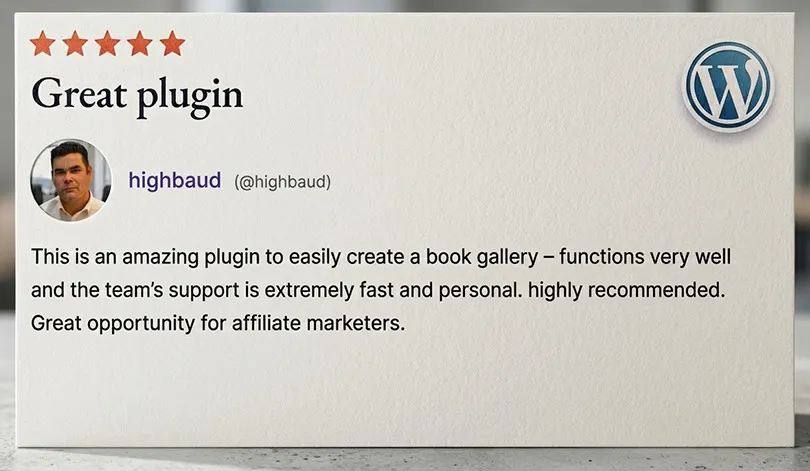
With over 5,000 active installations and 100+ five-star reviews, it’s the most trusted WordPress Amazon affiliate book plugin available today.
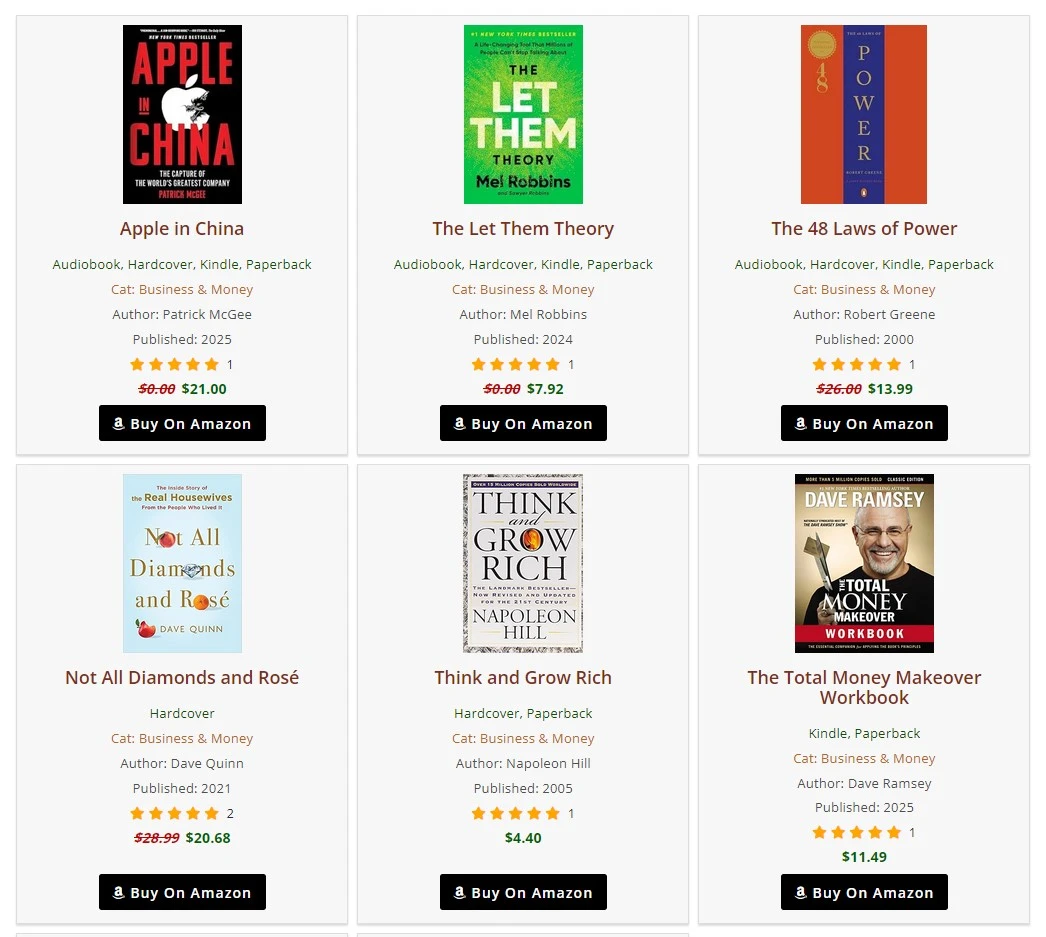
Key features that make it perfect for Amazon affiliate stores:
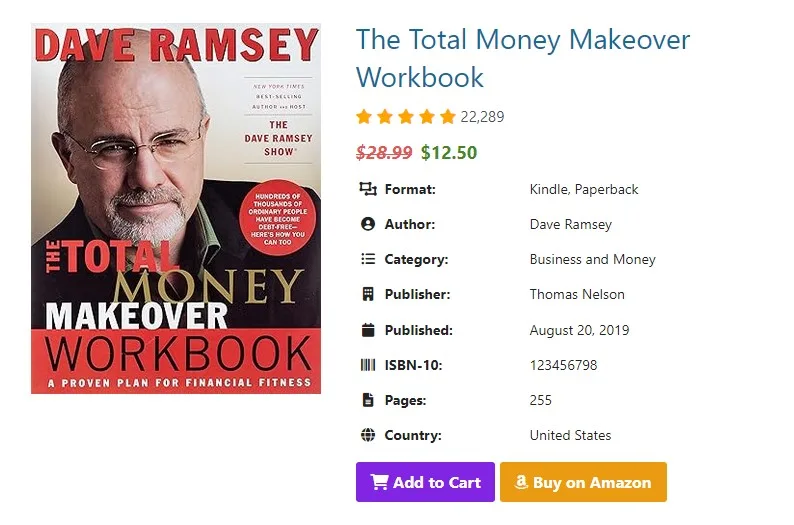
- Add Amazon affiliate links directly to each book – with one-click buy buttons
- Support for up to 15 different sale/affiliate links per book
- Import books instantly from Google Books API using ISBN numbers
- Bulk import hundreds of books at once using a CSV file
- Beautiful responsive layouts – grid, list, featured, and minimal views
- Built-in book search and filter panel – visitors find books fast
- WooCommerce integration – sell your own books directly alongside affiliate titles
- Book reviews and star ratings to boost trust and engagement
🔗 Ready to get started?
Download the free version from WordPress.org or view all premium plans at books-gallery.com/pricing-faq/ to unlock advanced features.
How to Build an Amazon Affiliate Book Store in WordPress: Step-by-Step
Follow these 7 steps to get your Amazon affiliate book store up and running. The entire process takes less than 60 minutes for most users.
Step 1: Install and Activate the Books Gallery Plugin
Start by installing the Books Gallery plugin on your WordPress site. Here’s how:
- Log in to your WordPress admin dashboard
- Go to Plugins → Add New
- Search for “Books Gallery” in the search box
- Click Install Now next to the Books Gallery plugin by HM Plugin
- Click Activate once the installation is complete
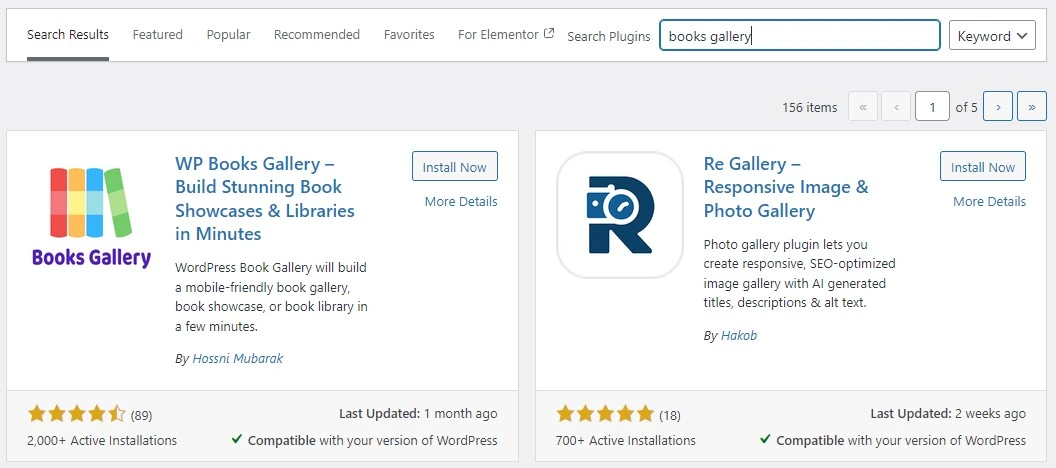
Once activated, you should now see a new “WBG Books” menu item in your WordPress admin sidebar. Essentially, this is your book management hub where you’ll add and manage all your books.
📖 Pro tip:
If you’ve purchased the premium version, download the plugin zip file from your account at books-gallery.com, then go to Plugins → Add New → Upload Plugin and upload the zip file instead.
Step 2: Join the Amazon Associates Program
Before adding affiliate links, you need an Amazon Associates account. If you haven’t already:
- Visit affiliate-program.amazon.com and click Join Now for Free
- Sign in with your existing Amazon account (or create one)
- Fill in your website details and describe how you plan to drive traffic
- Choose your payment method and complete registration
- Your Associates account is approved instantly for most applicants
Once approved, you can generate affiliate links for any book on Amazon. Additionally, your affiliate tag (e.g. yoursitename-20) is automatically appended to any link you create from within Amazon Associates Central.
💡 How to get an Amazon affiliate link for a specific book:
Go to the book’s page on Amazon, then use the SiteStripe toolbar at the top of the page (visible when logged into Associates) to generate your affiliate link. Copy the full link – you’ll need it in Step 4.
Step 3: Add Your First Books to the Gallery
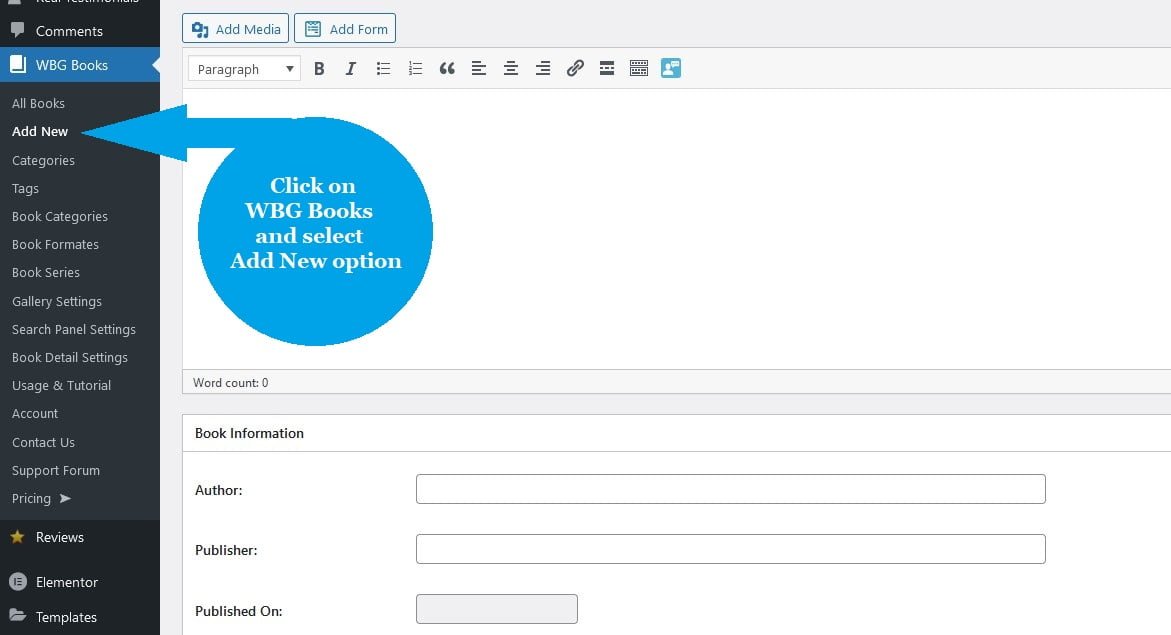
Now it’s time to build your book catalog. Fortunately, Books Gallery gives you three ways to add books – choose the one that suits your workflow:
Manual entry – best for a small number of carefully chosen books
- Go to WBG Books → Add New Book in your WordPress dashboard
- Fill in the book title, author, description, genre, ISBN, and publish date
- Upload or paste the book cover image URL
- Click Publish to save the book
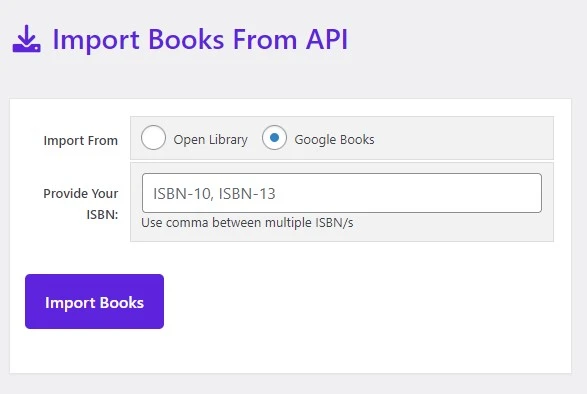
Google Books API import – fastest way to import books with full metadata
- Go to WBG Books → API Import
- Enter the book’s ISBN-10 number in the import field
- To import multiple books at once, separate ISBNs with commas (e.g. 0385333498, 0743273567)
- Click Import Books – title, author, cover image, description, and metadata are pulled automatically
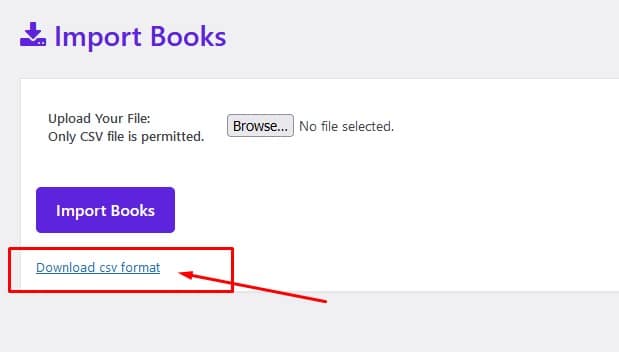
CSV bulk import – ideal for importing a large catalog at once
-
- Go to Tools → WBG Books Import → Download the CSV template
- Prepare your book data in a spreadsheet (title, author, ISBN, cover URL, description)
- Upload the CSV file and click Import Books
⚡ Speed tip:
Use the Google Books API import with comma-separated ISBNs to add 20–30 books in a single click. This is the fastest way to build up your initial catalog, especially for niche book roundups.
Step 4: Add Your Amazon Affiliate Links to Each Book
This is the most important step – adding your Amazon affiliate links so every book in your gallery has a working buy button. Here’s exactly how to do it:
- In your WordPress dashboard, go to WBG Books and click on a book to edit it
- Scroll down below the Book Information section to find the External Link section
- Select Product Type External/Affiliate Product
- In the Buy From URL field, paste your Amazon affiliate link for that book
- Click Update to save
- Go to Gallery Settings → Enable Display Download Button
- In the Button Text field next to it, type your button label – e.g. “Buy on Amazon” or “Get on Amazon”
- Click Update to save

Repeat this process for each book in your catalog. For large catalogs, however, consider doing this in batches – add 10–20 affiliate links per session so it doesn’t feel overwhelming. You can add up to 15 different affiliate or sale links per book – use this to link to multiple retailers if desired.
🔗 Multiple links tip:
Use the multiple links feature to offer both an Amazon affiliate link and a direct purchase option. For example: Link 1 = “Buy on Amazon” (your affiliate link), Link 2 = “Buy on Book Depository” (another affiliate). More options = more chances to earn.
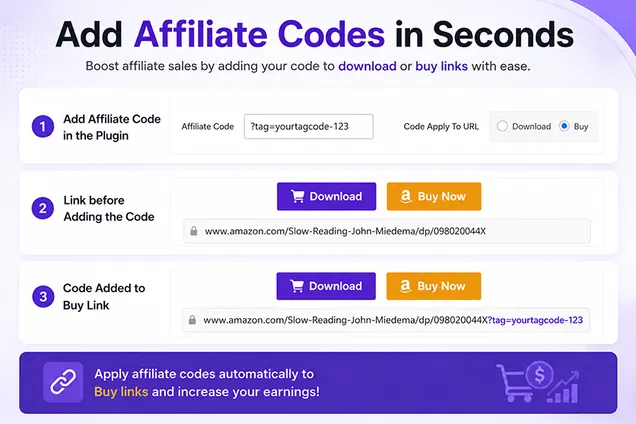
💡 Pro tip: Books Gallery includes an automatic affiliate code feature – enter your Amazon Associates tag once in the plugin settings and it automatically appends ?tag=yourtag-20 to every Amazon link across your entire gallery. No need to manually add your tag to each book individually!
Step 5: Configure the Gallery Settings
Now set up how your book store looks and behaves. Go to WBG Books → Gallery Settings in your dashboard:
Content Settings:
- Button Text: Change the default “Download” button text to “Buy on Amazon” or “Shop Now”
- Show/hide the search panel – recommended to keep this ON for stores with 10+ books
- Set the number of books per page – 12 or 24 works well for most stores
- Choose your default sort order – “Newest First” or “A-Z by Title” are most user-friendly
Style Settings:
- Choose your layout – Grid View is best for affiliate book stores (showcases covers prominently)
- Set image size – larger images increase click-through rates on book covers
- Customize colors to match your website’s branding
- Enable hover effects for a more interactive feel
Click Save Settings when done. As a result, your gallery is now fully styled and configured.
Step 6: Create and Publish Your Book Store Page
Your books are added and configured – now create the page where visitors will browse your store:
- Go to Pages → Add New in your WordPress dashboard
- Give the page a keyword-rich title – e.g. “Amazon Book Store” or “Best Books to Read in [Your Niche]”
- In the page editor, add the Books Gallery shortcode: [
wp_books_gallery] - For a category-specific gallery, use: [
wp_books_gallery category="your-category"] - Add a short introductory paragraph above the shortcode explaining what the page is about
- Set an SEO title and meta description via Yoast or Rank Math
- Click Publish
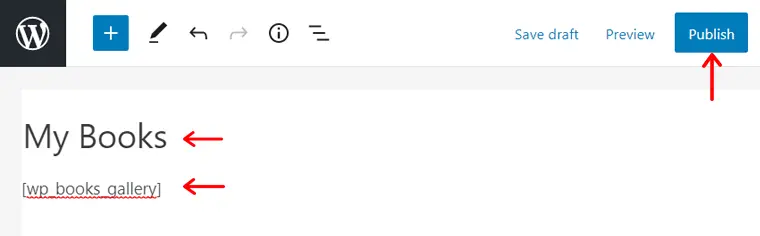
Next, visit the page on your site to see your Amazon affiliate book store live. Then test a few buy buttons to make sure they redirect to Amazon correctly with your affiliate tag in the URL.
🎯 Page SEO tip:
Name your book store page with a niche keyword for better Google rankings. For example: “Best Business Books” or “Top Self-Help Books on Amazon” – niche-specific pages rank much faster than generic “Book Store” pages.
Step 7: Optimize for More Affiliate Clicks
Your store is live – now let’s maximize your earnings. These proven tactics increase click-through rates on Amazon affiliate book stores:
- Write mini-reviews for each book. Even 2–3 sentences explaining why you recommend a book dramatically increases clicks. People buy books they understand, not just titles they see.
- Enable the star rating feature. Books Gallery’s integrated rating system lets visitors rate books. Higher ratings = more social proof = more affiliate clicks.
- Organize by category. Create separate gallery pages for each genre or topic (e.g. “Best Marketing Books”, “Top Fantasy Novels”). Category pages rank well in Google and convert better.
- Add new books regularly. Fresh content signals to Google that your site is active. Aim to add 5–10 new books per week when starting out.
- Link from your blog posts. Every book review, reading list, or recommendation post on your blog should link back to the relevant book in your gallery – driving warm, high-intent traffic to your affiliate links.
How Much Can You Earn from an Amazon Affiliate Book Store?
Amazon pays between 4.5% and 10% commission on book sales depending on your Associates tier and book category. Here’s a realistic picture of what’s possible:
- A visitor buys a $20 book → you earn $0.90–$2.00
- 100 visitors/day with a 3% conversion rate = 3 sales/day = $2.70–$6.00/day
- Scale to 1,000 visitors/day = $27–$60/day = $810–$1,800/month
Ultimately, the key to scaling is growing your organic search traffic – which is why your store’s SEO matters. As a result, a well-organized, content-rich book store with targeted niche pages can rank in Google and drive consistent free traffic for years.
📈 Pro growth tip:
Write blog posts targeting searches like “best [niche] books” and embed your Books Gallery shortcode directly in those posts. Readers see your curated list with Amazon buy buttons – no separate store page needed.
Frequently Asked Questions
Here are answers to the most common questions about building an Amazon affiliate book store with WordPress:
Is the Books Gallery plugin free?
Yes – Books Gallery has a fully functional free version available on WordPress.org with no time limits. The free version includes core gallery features, Amazon affiliate link support, and basic layouts. Premium plans unlock advanced features like the CSV importer, multiple gallery views, priority support, and more. View all plans at books-gallery.com/pricing-faq/.
Do I need coding skills to build this book store?
Not at all. Books Gallery is designed for non-technical users. In fact, everything is managed through a visual admin panel – no PHP, CSS, or HTML required. Therefore, if you can use WordPress, you can build a professional affiliate book store with Books Gallery in under an hour.
Can I add affiliate links from other bookstores besides Amazon?
Yes. Books Gallery supports up to 15 different sale or affiliate links per book. You can add links from Amazon, Barnes & Noble, Book Depository, ThriftBooks, AbeBooks, or any other retailer. This lets you maximize your affiliate earnings by directing buyers to multiple options.
How do I add affiliate links to books in bulk?
Currently, affiliate links need to be added per book in the edit screen. Nevertheless, the most efficient approach is to use the CSV import feature (premium) to bulk-import your book details first, then add the affiliate links in batches. Moreover, for stores with large catalogs, focus on adding affiliate links to your most popular or high-value books first.
Will my Amazon affiliate book store rank in Google?
Yes, with the right strategy. Create niche-specific gallery pages (e.g. “Best Personal Finance Books”), write descriptive content on each page, ensure your site is fast and mobile-friendly, and build internal links between your book reviews and store pages. The Books Gallery plugin generates SEO-friendly individual book pages with their own URLs, which also helps with search visibility.
Can I use Books Gallery with WooCommerce?
Yes – Books Gallery has full WooCommerce integration. This means you can sell your own books directly through your site (with WooCommerce handling checkout) while also displaying Amazon affiliate buy buttons for books you don’t sell yourself – all in the same gallery. Consequently, it’s the most flexible setup for authors who both sell and promote books.
What happens if Amazon changes its affiliate commission rates?
Amazon does occasionally adjust commission rates. To protect your income, we recommend diversifying your affiliate links across multiple booksellers using Books Gallery’s multiple links feature. This way, if one retailer reduces their rates, your other affiliate partnerships continue earning.
Start Building Your Amazon Affiliate Book Store Today
Building an Amazon affiliate book store with WordPress has never been easier. With the Books Gallery plugin, you can go from zero to a fully functional, professional bookstore in under an hour – complete with Amazon buy buttons, a searchable catalog, and beautiful responsive layouts.
Above all, the key to long-term affiliate income is consistency: keep adding books, keep creating niche-targeted content, and let your organic search traffic grow over time. In fact, many Books Gallery users report earning their first affiliate commissions within the first week of launching their store.
👉 Download Books Gallery Free → wordpress.org/plugins/wp-books-gallery/
🚀 View Premium Plans → books-gallery.com/pricing-faq/
🎬 See Live Demo → books-gallery.com/demo/