

If you’re an author, publisher, or independent bookseller, learning how to sell books online with WordPress is one of the most profitable skills you can develop. Unlike relying on Amazon or other third-party marketplaces, selling books directly from your own WordPress site means you keep 100% of your revenue and build a direct relationship with your readers.
In this complete guide, we’ll show you exactly how to sell books online with WordPress using the Books Gallery plugin — the most trusted WordPress bookstore plugin available today. Whether you want to sell eBooks, physical books, or both, this step-by-step tutorial covers everything you need to get started.
💡 What you’ll need:
A WordPress website, the Books Gallery plugin (free version on WordPress.org), and optionally WooCommerce for direct checkout. No coding skills required.
Why Sell Books Directly from Your WordPress Site?
Many authors default to Amazon or Gumroad for selling books – however, there are compelling reasons to sell directly from your own WordPress site instead:
- Keep 100% of your revenue – no platform fees or commissions deducted
- Build your own email list and reader community
- Full control over pricing, discounts, and promotions
- Combine direct sales with Amazon affiliate links for maximum income
- Own your storefront – no risk of account suspension or policy changes
- Better brand experience – your site, your design, your rules
Furthermore, with the right WordPress bookstore plugin, setting up a professional online book store takes less than an hour. As a result, even technically non-savvy authors can launch and run a successful book store entirely on their own.
What is the Books Gallery WordPress Plugin?
Books Gallery is a powerful WordPress plugin specifically designed to help authors, publishers, bookstores, and libraries display and sell books online. With over 5,000 active installations and 100+ five-star reviews, it’s the most widely used WordPress plugin to sell books available today.
Moreover, it’s built for real-world use cases – whether you’re a self-published author selling eBooks, a bookstore selling physical copies, or an affiliate marketer promoting books on Amazon. Consequently, it covers every scenario in one flexible, easy-to-use package.
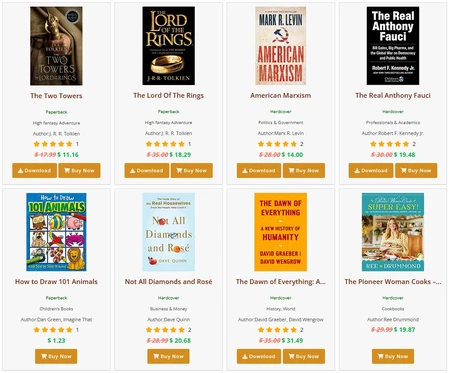
Key features for selling books on WordPress:
- WooCommerce integration – sell books directly with secure checkout
- Amazon affiliate links – earn commissions on every sale
- Up to 15 sale/affiliate links per book
- Google Books API import – add books by ISBN in seconds
- CSV bulk import – upload your entire catalog at once
- Responsive grid and list layouts – beautiful on all devices
- Built-in search and filter panel – visitors find books fast
- Book reviews and star ratings – build trust and social proof
- Download permission controls – gate content behind login
🔗 Ready to install?
Download Books Gallery free from WordPress.org, or view premium plans at books-gallery.com/pricing-faq/ to unlock advanced selling features.
How to Sell Books Online with WordPress: Step-by-Step
Follow these 6 steps to set up your WordPress book store and start selling. The entire process takes under 60 minutes for most users.
Step 1: Install and Activate Books Gallery
First, install the Books Gallery plugin on your WordPress site. Here’s how to do it:
- Log in to your WordPress admin dashboard
- Navigate to Plugins → Add New
- Search for “Books Gallery” in the plugin search box
- Click Install Now next to Books Gallery by HM Plugin
- Click Activate after installation completes
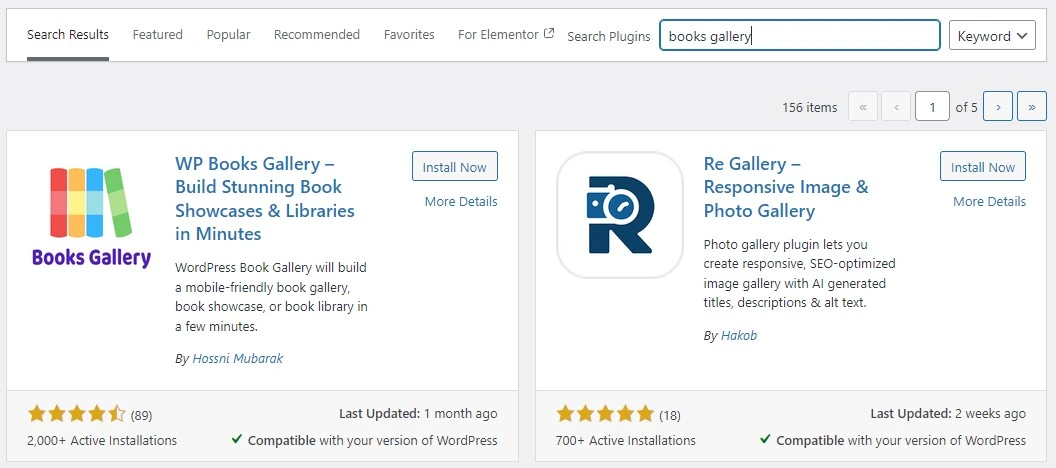
Once activated, you’ll see a new WBG Books menu in your WordPress sidebar. This is your central hub for managing your entire book catalog, gallery settings, and selling options.
📖 Premium version tip:
If you’ve purchased a premium plan, download the plugin zip from your account page at books-gallery.com. Then go to Plugins → Add New → Upload Plugin and upload the zip file to install it.
Step 2: Choose Your Selling Method
Before adding books, decide how you want to sell. Books Gallery supports three selling approaches – additionally, you can combine them for maximum income:
Option A: Sell directly with WooCommerce
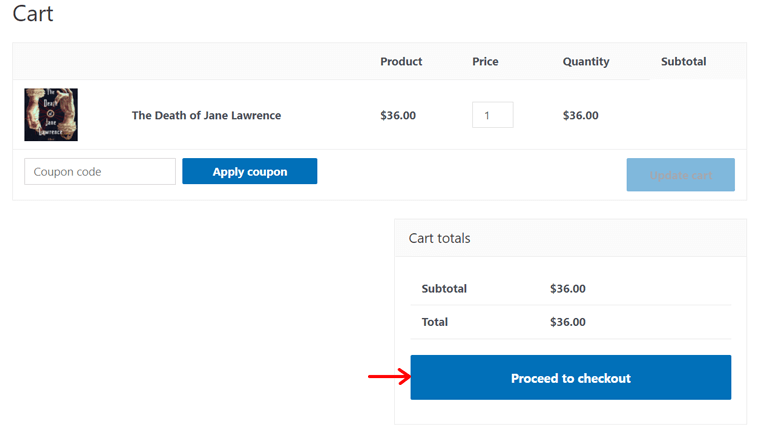
This is ideal for authors who want to sell eBooks or physical books directly from their WordPress site, keeping 100% of each sale. WooCommerce handles payments, checkout, and digital delivery – while Books Gallery displays your books beautifully.
Option B: Amazon affiliate links
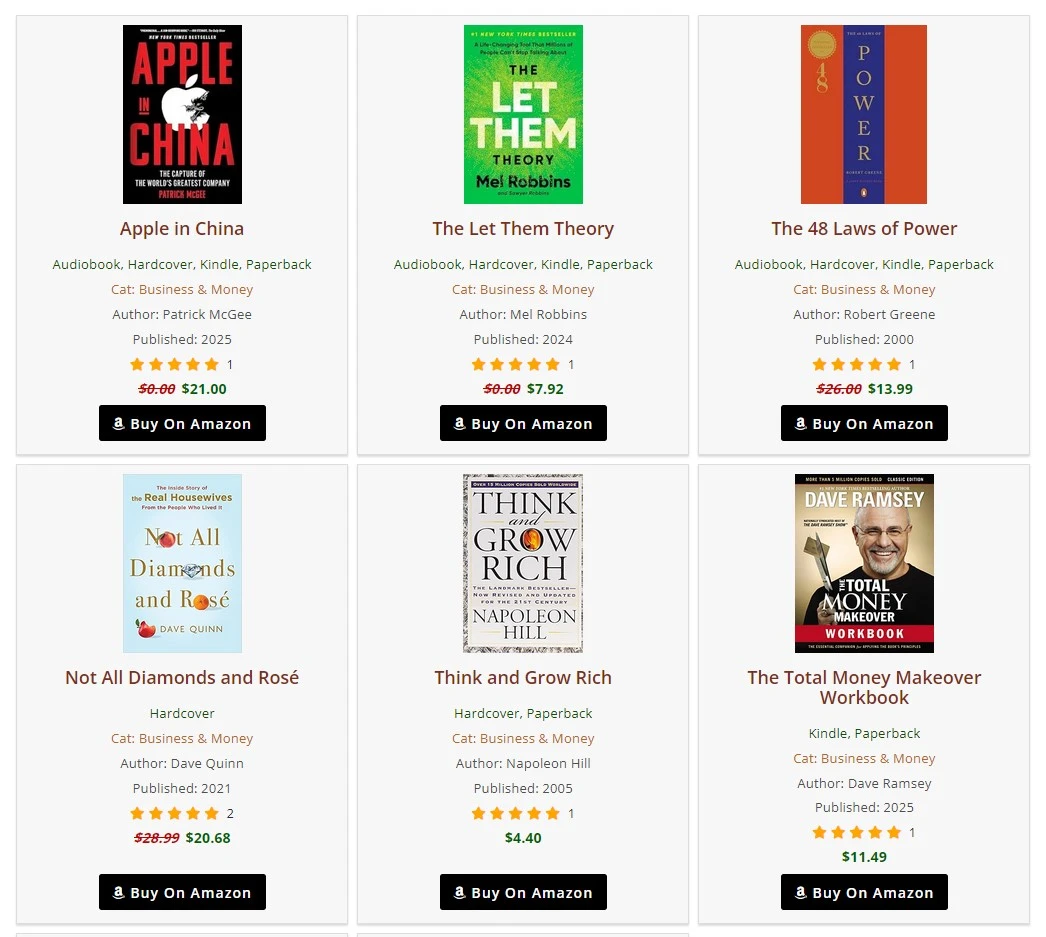
Instead of handling payments yourself, you direct buyers to Amazon and earn a commission on every purchase. This method requires zero order management – therefore, it’s the lowest-effort option for authors who already sell on Amazon.
Option C: Hybrid – both direct sales and affiliate links
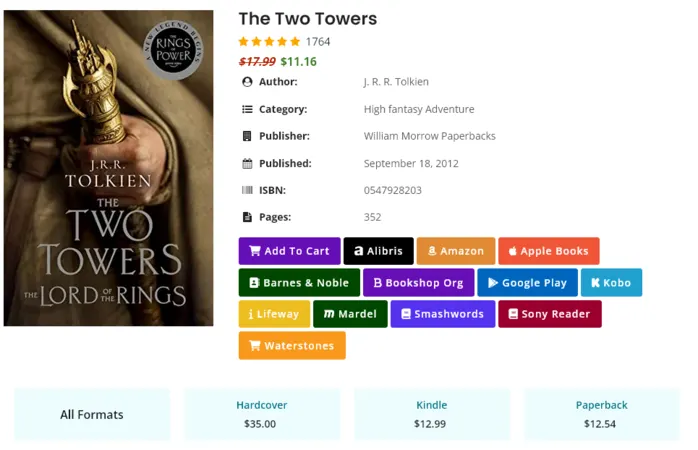
Books Gallery supports up to 15 sale links per book, so you can offer both a direct “Buy Now” WooCommerce button and an “Also available on Amazon” affiliate link on the same book page. As a result, this approach maximizes your income by capturing buyers who prefer either option.
Step 3: Set Up WooCommerce for Direct Book Sales
If you chose Option A or Option C above, you’ll need WooCommerce installed to handle direct sales. Follow these steps to set it up:
- Go to Plugins → Add New → search “WooCommerce” → Install and Activate
- Complete the WooCommerce setup wizard – add your store location, currency, and payment methods
- Go to WooCommerce → Settings → Payments and enable your preferred gateway (PayPal, Stripe, or direct bank transfer)
- For selling eBooks, go to WooCommerce → Settings → Products → Downloadable products and configure download settings
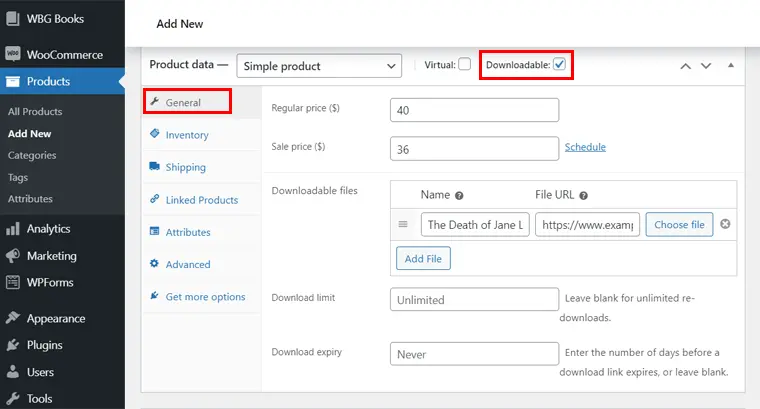
Once WooCommerce is configured, you’re ready to link your books to WooCommerce products. For self-published authors evaluating eCommerce platforms, WooCommerce combined with Books Gallery is the most cost-effective solution – zero transaction fees, full control over pricing, and seamless digital delivery. We’ll cover this in Step 5 below.
💡 No WooCommerce? No problem.
If you only want to use affiliate links (Option B), you can skip this step entirely. Books Gallery works perfectly without WooCommerce – simply add your Amazon affiliate links to each book instead.
Step 4: Add Your Books to the Gallery
Now it’s time to build your book catalog. There are three ways to add books – choose the method that suits your situation:
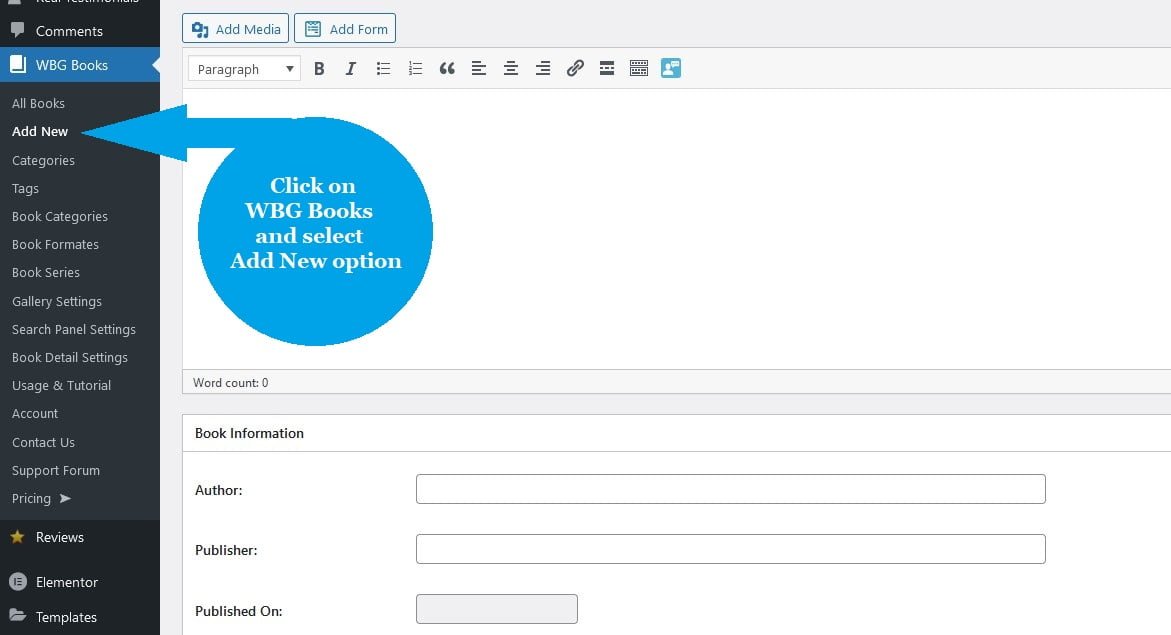
Manual entry – best for adding a small number of books with custom descriptions
- Go to WBG Books → Add New Book in your WordPress dashboard
- Fill in: title, author, description, genre, ISBN, publisher, and publish date
- Upload your book cover image
- Click Publish to save the book
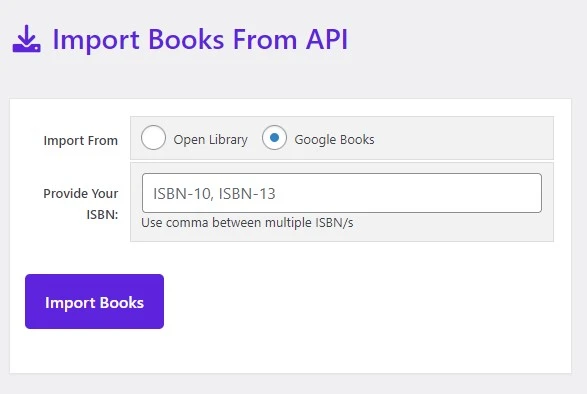
Google Books API import – fastest method, imports full book data automatically
- Go to WBG Books → API Import
- Enter the book’s ISBN-10 number (or multiple ISBNs separated by commas)
- Click Import – title, author, cover image, and description are pulled automatically from Google Books
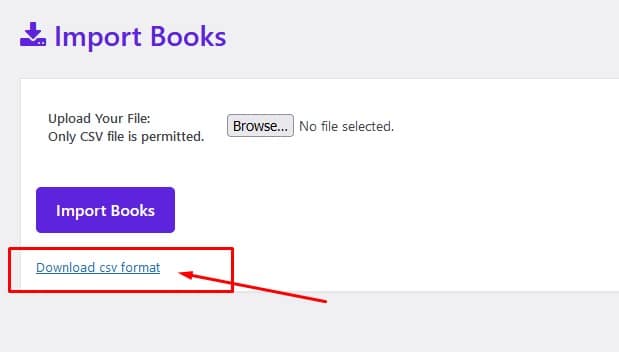
CSV bulk import – ideal for uploading a large catalog all at once (premium feature)
- Go to Tools → WBG Books Import → Download the CSV template
- Prepare your book data in a spreadsheet (title, author, ISBN, cover URL, description)
- Upload the CSV file and click Import Books
⚡ Speed tip:
Use the Google Books API import with 10–20 ISBNs at once to rapidly build your initial catalog. It takes about 30 seconds to import a full batch of books with complete metadata and cover images.
Step 5: Add Sale Links and Pricing to Each Book
This is the most critical step for actually selling books. For each book in your gallery, you need to add your sale links – whether that’s a WooCommerce buy button, an Amazon affiliate link, or both:
To add a WooCommerce buy link:
- First, create the book as a WooCommerce product (Products → Add New) and set the price
- Then go to WBG Books and open the book for editing
- In the External Links section, paste the WooCommerce product URL
- Click Update to save
- Go to Gallery Settings → Enable Display Download Button
- Set the button text to “Buy Now” or “Add to Cart”
To add an Amazon affiliate link:
Log in to Amazon Associates, find the book on Amazon, generate your affiliate link using the SiteStripe toolbar, then paste it into the External URL field on the book’s edit page. Set the button text to “Buy on Amazon” and click Update.
💰 Pro selling tip:
Add both a WooCommerce link (“Buy Directly – $9.99”) AND an Amazon affiliate link (“Also on Amazon”) to each book. This way, budget-conscious buyers can choose Amazon while readers who prefer direct purchases buy from you — and you earn from both.
Step 6: Create Your Book Store Page and Configure the Gallery
With your books added and priced, it’s time to create the public-facing store page your visitors will browse:
- Go to Pages → Add New and create a page with a keyword-rich title like “Online Book Store” or “Books by [Your Name]”
- Add the shortcode [
wp_books_gallery] to display all your books, or [wp_books_gallery category="your-category"] for a category-specific gallery - Write a short introductory paragraph above the shortcode that describes your store and includes your target keywords
- Set an SEO title and meta description via Yoast or Rank Math
- Click Publish when done
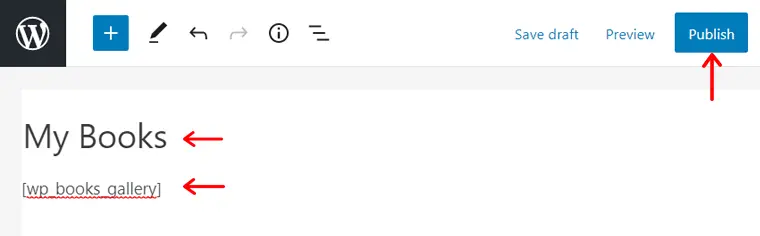
Additionally, configure your gallery settings by going to WBG Books → Gallery Settings. Here you can set your default layout (Grid View works best for book stores), customize colors and fonts to match your brand, and configure the search panel. Once everything looks right, save your settings and visit your new store page.
How to Promote Your WordPress Book Store and Drive Sales
Setting up your store is only half the battle – moreover, driving traffic and converting visitors into buyers is what ultimately determines your success. Here are the most effective strategies for promoting your WordPress book store:
1. Optimize Each Book Page for SEO
Every book in your Books Gallery gets its own individual URL (e.g. books-gallery.com/books/your-book-title/). Therefore, take full advantage of this by writing a unique, keyword-rich description for each book – at least 150–200 words. Include the book title, author name, genre, and key themes naturally within the description. As a result, individual book pages can rank in Google for searches like “[book title] buy online” or “[author name] books WordPress.”
2. Write Blog Posts That Link to Your Store
Content marketing is one of the most powerful long-term traffic strategies for book stores. For example, write posts like “Best [Genre] Books of 2026” or “Top Books for [Your Audience]” and embed your Books Gallery shortcode directly in the post. Consequently, readers arrive at a curated list with buy buttons already visible – no extra clicks needed. Furthermore, these posts rank in Google and drive consistent free traffic over time.
3. Share on Social Media with Book Cover Images
Visually appealing book covers perform extremely well on Instagram, Pinterest, and Facebook. Additionally, use the book gallery’s grid view for a screenshot that makes a compelling social media post. Include a direct link to your store page in every post, and consider running a small boosted post ($5–10) on Facebook targeting readers in your book’s genre for an immediate traffic spike.
4. Build an Email List of Readers
Email marketing consistently delivers the highest ROI of any marketing channel for book sellers. Offer a free chapter, reading list, or exclusive discount in exchange for email sign-ups. Subsequently, send regular newsletters featuring new releases, limited-time discounts, and reading recommendations – always with a direct link back to your book store page.
5. Use Discounts and Promotions Strategically
Since you control your pricing directly, you can run time-limited promotions whenever you need a sales boost. For instance, launch discount codes for new releases, holiday sales, or reader milestones (e.g. “Celebrating 1,000 sales – 30% off this weekend”). Announce promotions via email and social media for maximum impact.
Frequently Asked Questions
Here are answers to the most common questions about how to sell books online with WordPress:
Is Books Gallery free to use?
Yes – Books Gallery has a fully functional free version available on WordPress.org. The free version includes core gallery features, affiliate link support, Google Books import, and basic layouts. Premium plans, starting from $39/year, unlock advanced features including CSV import, multiple gallery layouts, priority support, and more. View all plans at books-gallery.com/pricing-faq/.
Do I need WooCommerce to sell books with Books Gallery?
No – WooCommerce is optional. If you only want to use Amazon affiliate links, Books Gallery works perfectly without it. However, if you want to sell books directly from your site and accept payments, WooCommerce integration is the recommended approach. The two plugins work seamlessly together.
Can I sell both physical books and eBooks?
Yes. With WooCommerce integration, you can sell physical books (with shipping options) and digital eBooks (as downloadable files) from the same gallery. Each book can be configured differently – for instance, a title might have both a physical and a digital edition with separate pricing and delivery methods.
How do I sell books without technical skills?
Books Gallery is specifically designed for non-technical users. Everything is managed through a visual admin panel – no coding, PHP, or CSS knowledge is required. If you can use WordPress to write a blog post, you have all the skills needed to set up and run a professional book store with Books Gallery.
Can I import my existing book catalog?
Yes. Books Gallery supports three import methods: manual entry, Google Books API import (using ISBN numbers), and CSV bulk import (premium feature). The CSV import is particularly useful if you already have your catalog in a spreadsheet – simply export it as CSV and upload it directly to Books Gallery.
Will my book store work on mobile devices?
Absolutely. Every Books Gallery layout is fully responsive and tested across all major devices – desktop, tablet, and smartphone. Your book store will look and function beautifully regardless of what device your visitors are using.
Can I track which books are selling best?
Yes – since your WooCommerce store is on your own WordPress site, you have full access to WooCommerce’s built-in sales reports and analytics. Additionally, connect Google Analytics for deeper insights into which books get the most views, which pages drive the most conversions, and where your traffic comes from.
Start Selling Books Online with WordPress Today
Learning how to sell books online with WordPress gives you complete control over your income, your brand, and your reader relationships – advantages you simply don’t get with Amazon or other third-party platforms. Above all, with the Books Gallery plugin, the entire setup process is straightforward and beginner-friendly.
To summarize: install Books Gallery, add your books, set up your sale or affiliate links, create your store page, and start promoting. In fact, many Books Gallery users make their first book sale within 24 hours of launching their store.
 Download Books Gallery Free → wordpress.org/plugins/wp-books-gallery/
 View Premium Plans → books-gallery.com/pricing-faq/
 See the Live Demo → books-gallery.com/demo/