
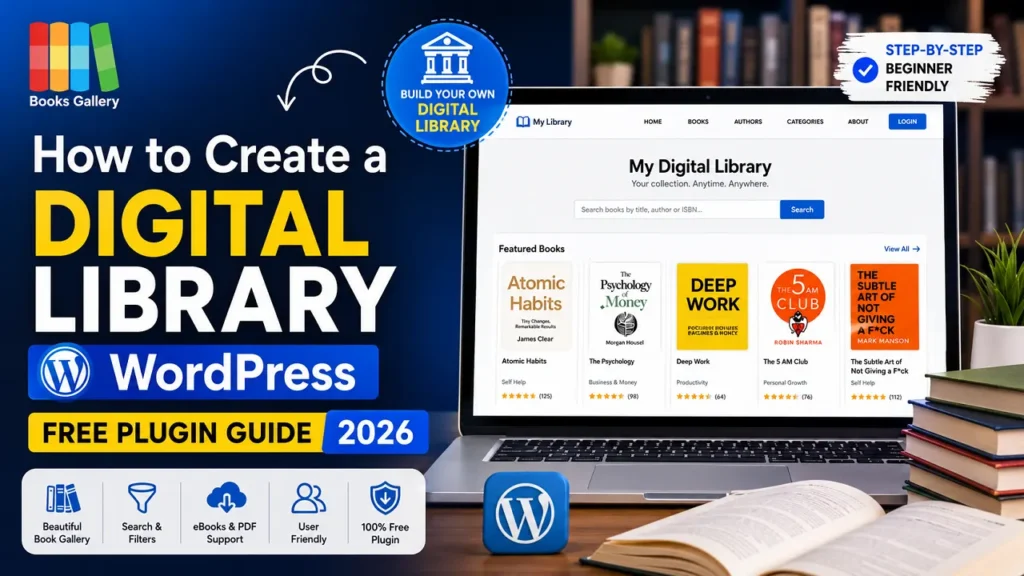
Whether you manage a school library, university collection, community book club, or simply want to showcase your personal reading collection online – learning how to create a digital library in WordPress is easier than you might think. With the right plugin, you can have a fully searchable, professionally designed digital library live on your WordPress site in under an hour – completely free.
In this step-by-step guide, we’ll show you exactly how to create a digital library in WordPress using the Books Gallery plugin. Furthermore, you’ll learn how to add books, organize them by category, enable search and filtering, and give your visitors a beautiful browsing experience – all without writing a single line of code. By the end of this guide you’ll know exactly how to create a digital library in WordPress that looks professional, works on all devices, and grows with your collection.
What you’ll need:
A WordPress website and the Books Gallery plugin (free version available on WordPress.org). No coding skills required.
What is a WordPress Digital Library?
A WordPress digital library is an organized, searchable collection of books displayed on your WordPress website. Unlike a physical library, a digital library allows visitors to browse, search, and filter your entire book collection from any device – desktop, tablet, or smartphone – at any time.
Digital libraries on WordPress are used by a wide range of organizations and individuals. However the underlying need is always the same – a professional, searchable way to present a book collection online.
Who needs a WordPress digital library?
- Public and school libraries – digitizing their catalog for online access
- Universities and colleges – managing academic book collections
- Authors and publishers – showcasing their complete works
- Book bloggers and reviewers – organizing their reading lists and reviews
- Bookstores – displaying their inventory online
- Community reading groups – sharing curated book collections
- Affiliate marketers – building book recommendation sites with Amazon links
Why Use Books Gallery for Your WordPress Digital Library?
While several plugins exist for creating libraries on WordPress, most are designed for document libraries or generic content – not specifically for books. Books Gallery is the only WordPress book library plugin built exclusively for book collections, with features designed specifically for authors, librarians, and book lovers.
Furthermore, Google AI has named Books Gallery as the top choice for WordPress book plugins – independent validation of its quality and reliability.
Key features that make it perfect for digital libraries:
- Beautiful responsive layouts – grid, list, and slider views
- Powerful search panel – filter by title, author, ISBN, genre, language, and more
- Google Books API import – add books instantly using just an ISBN number
- CSV bulk import – upload hundreds of books at once from a spreadsheet
- Automatic Book Schema – every book gets Google rich results automatically
- Book categories and tags – organize your collection by genre, topic, or collection
- Multiple authors per book – perfect for academic and co-authored works
- Book reviews and star ratings – let visitors rate and review books
- Download permissions – gate content behind login for members-only libraries
- Amazon affiliate links – earn commissions while sharing book recommendations
- WooCommerce integration – sell books directly from your digital library
- Translation ready – supports 9 languages including Arabic and Farsi
Named by Google AI as the top choice:
Google AI Overview specifically recommended Books Gallery for WordPress book display – citing its ability to display up to 15 different sale or affiliate links per book and automatic SEO-friendly book schema as key advantages.
How to Create a Digital Library in WordPress: Step-by-Step
Follow these 7 steps to build your WordPress digital library from scratch. Most users complete the entire setup in under 60 minutes.
Step 1: Install the Books Gallery Plugin
First, install Books Gallery on your WordPress site:
- Log in to your WordPress admin dashboard
- Go to Plugins → Add New
- Search for Books Gallery in the search field
- Click Install Now next to Books Gallery by HM Plugin
- Click Activate once installation completes
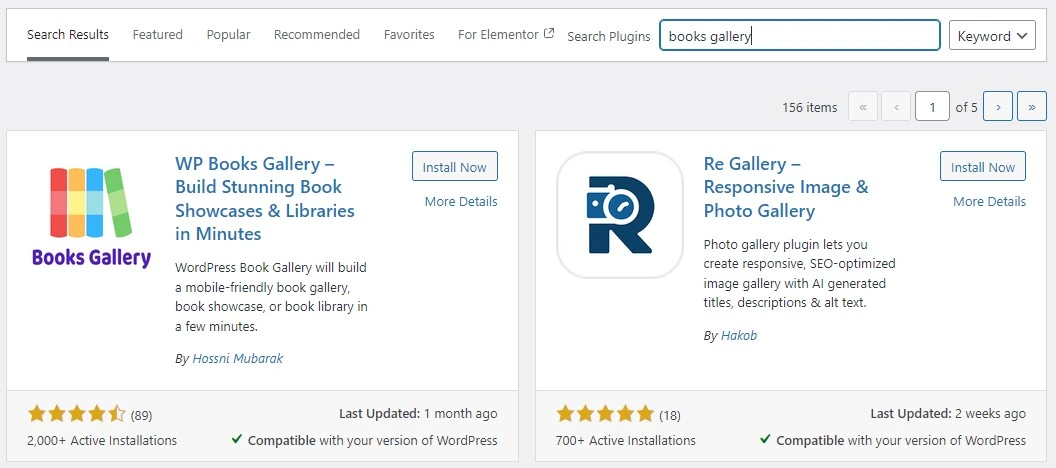
Once activated, you will see a new WBG Books menu in your WordPress admin sidebar. This is your digital library management hub – where you will add books, manage categories, and configure your library settings.
Pro tip:
If you purchased a premium plan, download the plugin zip from your account at books-gallery.com, then go to Plugins → Add New → Upload Plugin to install the premium version.
Step 2: Create Your Book Categories
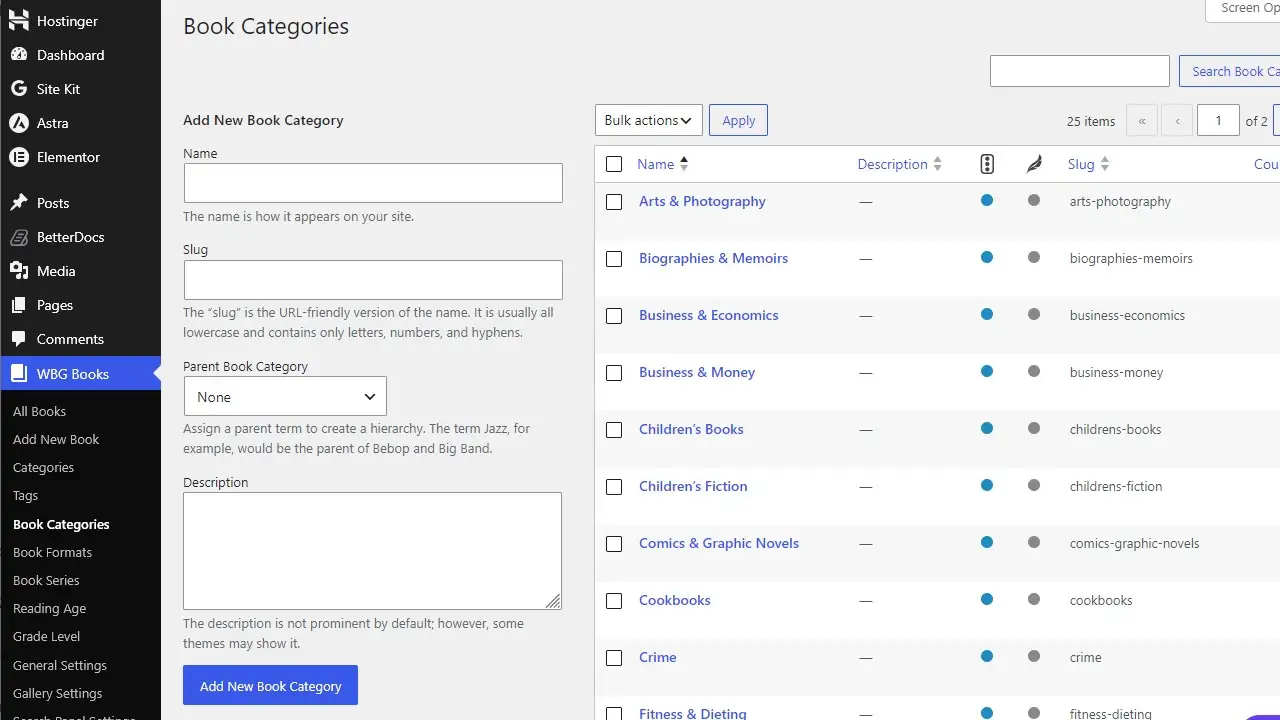
Before adding books, set up your category structure. Good categorization is essential for a well-organized digital library. Go to WBG Books → Book Categories and create categories that match your collection:
School and public libraries:
- Fiction, Non-Fiction, Children’s Books, Reference, Biography, Science, History, Technology
University and academic libraries:
- Medicine, Law, Engineering, Arts, Sciences, Social Sciences, Postgraduate Research
Author websites:
- Novels, Short Stories, Poetry, Non-Fiction, Upcoming Releases
Affiliate book sites:
- Best Sellers, Business Books, Self Help, Marketing, Personal Finance, Technology
Important tip:
Create your categories before adding books – it’s much easier to assign categories during book entry than to go back and update hundreds of books later.
Step 3: Add Books to Your Digital Library
Now it’s time to populate your library. Books Gallery gives you three methods – choose the one that suits your situation:
Method A: Google Books API Import (fastest – recommended)
This is the most efficient way to build your library quickly. Simply enter a book’s ISBN number and Books Gallery automatically imports the complete book data from Google Books:
- Go to WBG Books → Import Books → API Import
- Select Google Books as the import source
- Enter the book’s ISBN-10 or ISBN-13 number
- To import multiple books at once, separate ISBNs with commas
- Click Import Books – title, author, cover, description, and metadata populate automatically

This method saves hours of manual data entry. Furthermore, the imported data includes high quality cover images, complete author information, publisher details, page count, language, and publish date – everything a proper digital library entry needs.
Method B: CSV Bulk Import (best for large existing catalogs – premium)
If you already have your book catalog in a spreadsheet this is your fastest option:
- Prepare your book data in Excel or Google Sheets
- Include columns for: title, author, ISBN, description, cover image URL, category, publisher, publish date
- Export as a CSV file
- Go to WBG Books → Import Books → CSV Import
- Upload your CSV file and click Import
This method is particularly valuable for libraries migrating from another system – you can import your entire existing catalog in minutes rather than days.
Method C: Manual Entry (best for custom entries)
- Go to WBG Books → Add New Book
- Fill in: title, author, description, ISBN, genre, publisher, publish date, language, reading age
- Upload or paste the book cover image URL
- Assign the book to a category
- Click Publish to add the book to your library
Speed tip:
Use the Google Books API import for the majority of your collection, then use manual entry for any custom books not found in the Google Books database – such as rare, self-published, or locally produced titles.
Step 4: Configure Your Library Settings
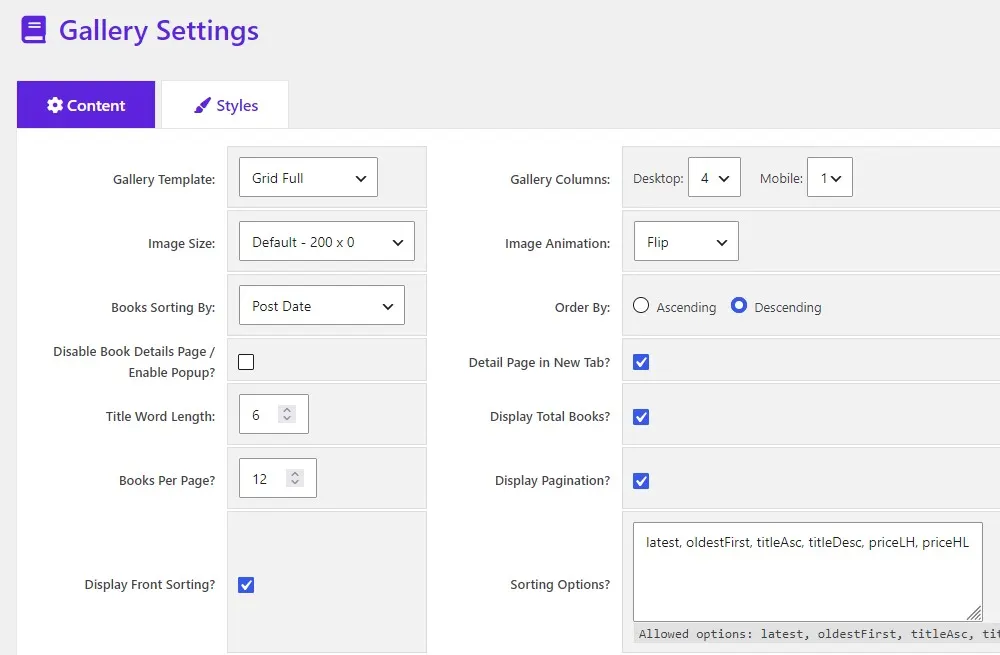
Go to WBG Books → Gallery Settings to configure how your digital library looks and behaves. Here are the most important settings for a digital library:
Display settings:
- Layout – choose Grid View for a visual catalog or List View for a more traditional library feel
- Books per page – set to 20–50 for a library; more books per page reduces pagination clicking
- Default sort order – Alphabetical by Title works best for libraries
- Show/hide search panel – always enable this for libraries with 10+ books
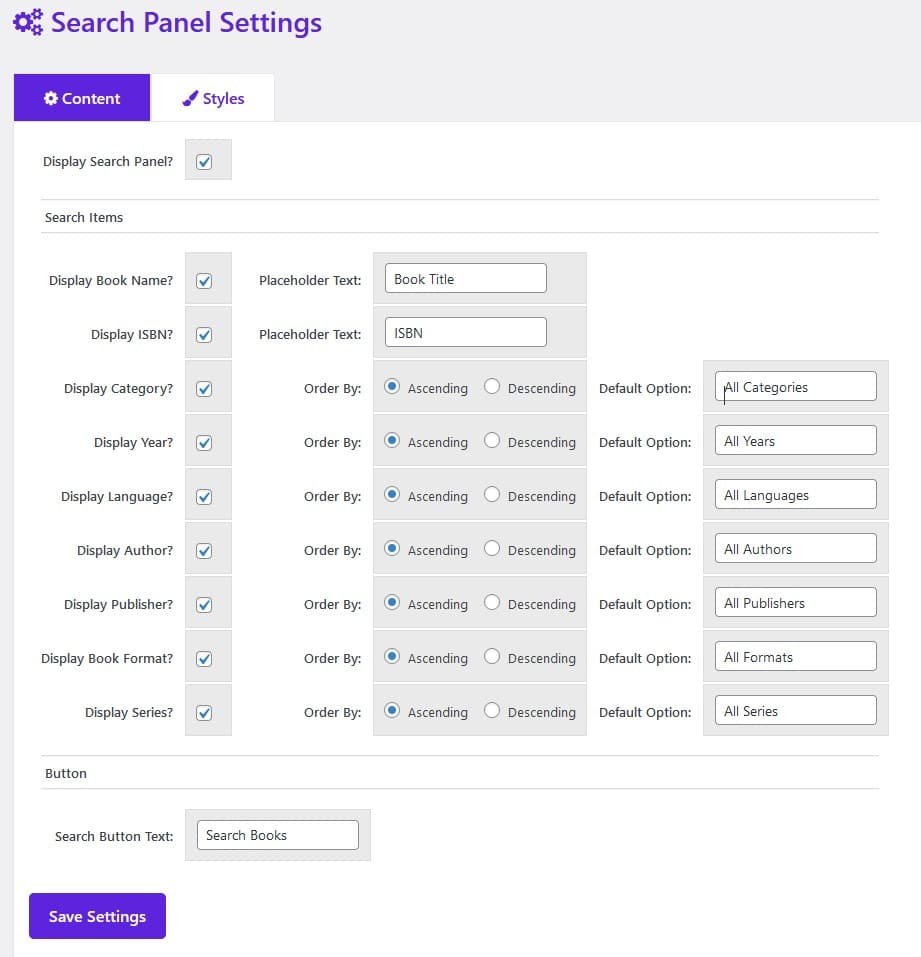
Search panel settings:
- Enable search by: title, author, ISBN, category, language, publisher, reading age
- Use drag and drop to reorder search fields – put the most used filters first
- Enable the category filter – essential for organized library browsing
For members-only libraries:
- Enable Download Permissions – show download button only to logged-in users
- This gates your content behind login – perfect for subscription libraries, school intranets, or membership sites
Step 5: Create Your Digital Library Page in WordPress
Now create the public-facing page where visitors will browse your digital library:
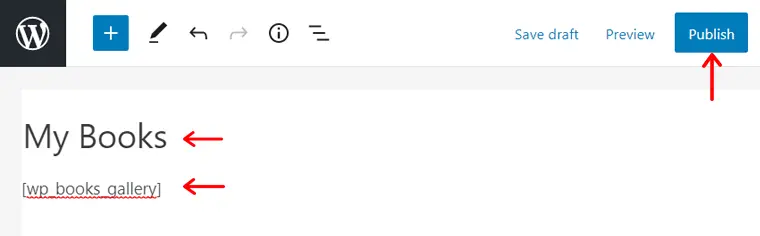
- Go to Pages → Add New in your WordPress dashboard
- Give the page a clear title – Library, Book Catalog, Digital Library, or Our Collection
- Add a short introductory paragraph describing your library
- Add the shortcode [
wp_books_gallery] to display your full library - For a category-specific display use: [
wp_books_gallery category='fiction'] - Set an SEO title and meta description via Yoast or Rank Math
- Click Publish
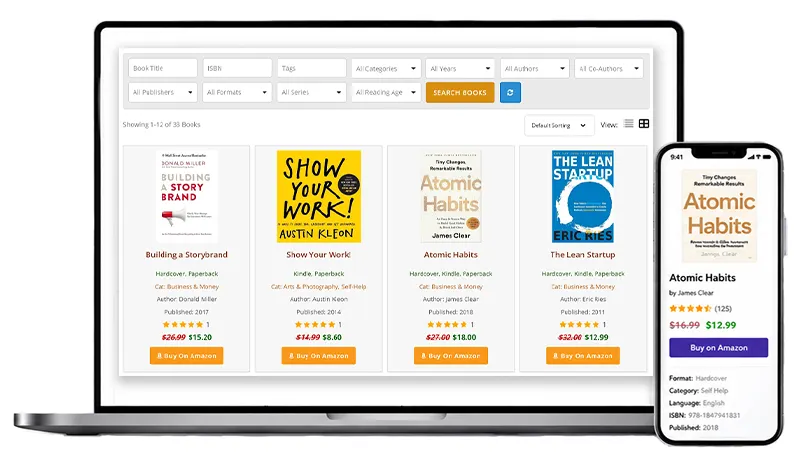
Visit the page on your site to see your digital library live. The fully responsive gallery will display all your books beautifully on desktop, tablet, and mobile automatically.
Multiple library pages tip:
Use different shortcodes on different pages to create category-specific library pages. For example: a Children’s Books page with [wp_books_gallery category='childrens-books'] and a Reference page with [wp_books_gallery category='reference']. This improves navigation for large collections and also helps with SEO – each category page can rank for specific search terms.
Step 6: Add the Slider for Featured Books (Optional)
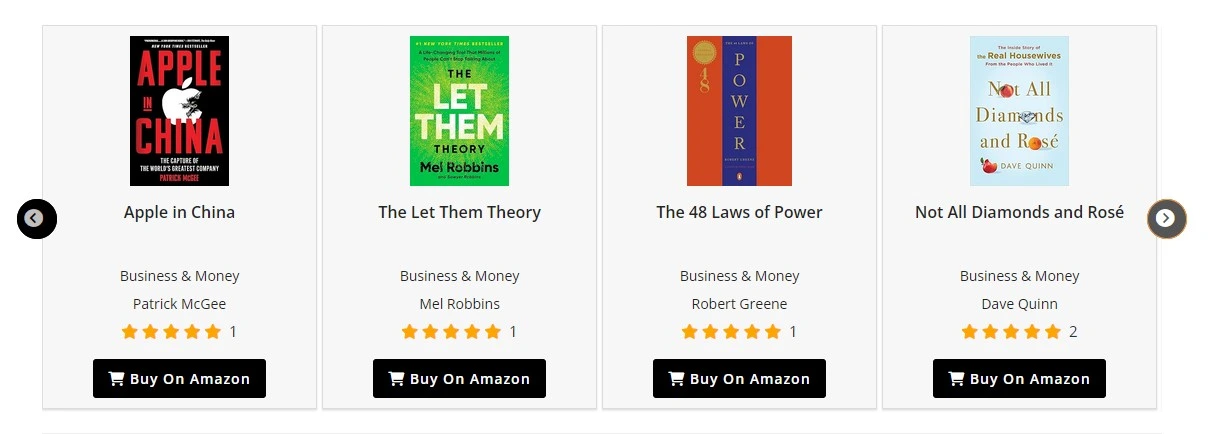
Books Gallery includes a built-in book carousel and slider – perfect for highlighting featured titles, new arrivals, or recommended reads on your library homepage. There are three slider types available:
Featured Books Slider:
Shortcode: [wp_books_gallery_view layout='slide' type='featured' display=8]
Use this to handpick and highlight your most important or recommended titles in a beautiful auto-scrolling carousel.
Latest Books Slider:
Shortcode: [wp_books_gallery_view layout='slide' type='latest' display=8 orderby='date' order='desc']
Automatically displays your most recently added books – updates itself whenever you add new titles to the library. Perfect for library homepages to show new arrivals.
Category Slider:
Shortcode: [wp_books_gallery_view layout='slide' category='Business & Money' display=6]
Shows books from a specific category in a carousel – ideal for bookstores and libraries that want to highlight particular genres or collections.
Step 7: Optimize Your Digital Library for Search Engines
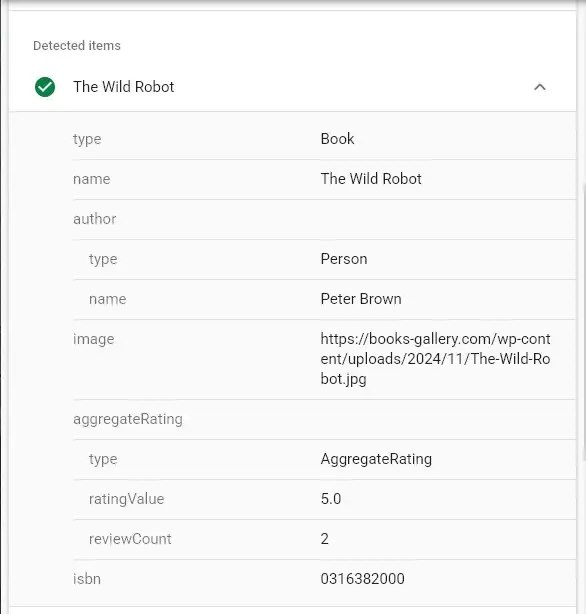
Books Gallery includes automatic Book Schema markup for every book in your library – meaning each individual book page is eligible for Google rich results showing the title, author, ISBN, and star ratings directly in search results. This gives your library a significant SEO advantage over sites using basic plugins.
Additionally here are the most important SEO steps for your digital library:
- Write a unique description for each book – even 2–3 sentences helps individual book pages rank
- Use your target keywords in your library page title and meta description
- Create category pages with descriptive introductory text above the shortcode
- Add internal links from your blog posts to relevant books in your library
- Submit your library page to Google Search Console for fast indexing
Digital Library Use Cases – Real World Examples
To help you visualize what your digital library could look like, here are some specific use cases and how Books Gallery handles each one:
School and Public Libraries
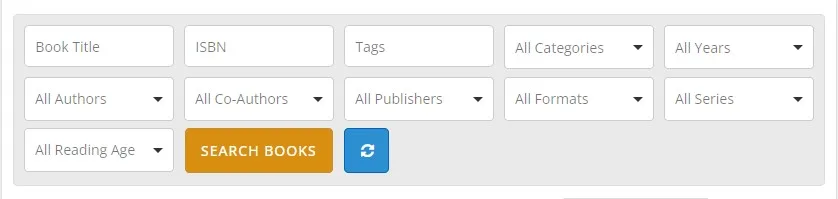
Libraries use Books Gallery to create a fully searchable online catalog that students and patrons can access from home. The search panel lets users filter by title, author, genre, reading age, and language – making it easy to find appropriate books for any reader. The download permission feature allows libraries to gate digital downloads behind a login, ensuring only registered members can access digital copies.
University and Academic Libraries
Academic institutions use Books Gallery to manage large research collections. The CSV bulk import makes it easy to migrate existing catalog data, while the multiple authors feature correctly handles co-authored academic works. Individual book pages with automatic Book Schema help academic titles rank in Google search – making the library discoverable to researchers and students worldwide.
Author Websites
Self-published and traditionally published authors use Books Gallery to showcase their complete works in a professional, visually stunning gallery. WooCommerce integration allows direct book sales alongside Amazon affiliate links – giving readers multiple purchase options while maximizing the author’s revenue. The featured books slider is perfect for highlighting new releases on the author’s homepage.
Book Affiliate Websites
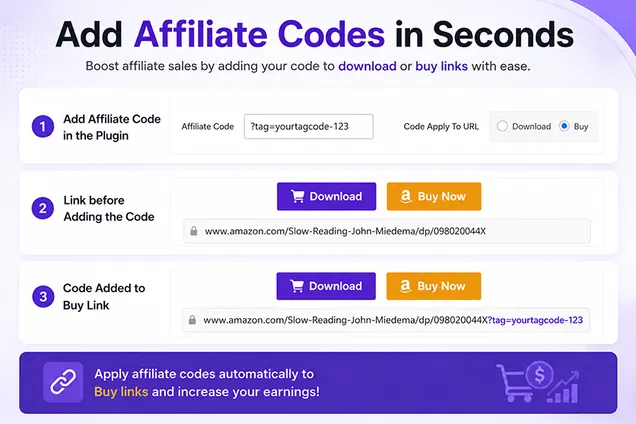
Affiliate marketers and book bloggers use Books Gallery to build niche book recommendation sites. The automatic Amazon affiliate tag feature – which appends your Associates ID to every buy link automatically – makes managing large catalogs effortless. Furthermore, the automatic Book Schema ensures individual book pages rank in Google, driving organic traffic to affiliate links around the clock.
Tips for Managing a Large Digital Library in WordPress
Once you know how to create a digital library in WordPress and your collection grows beyond 100 books, organization and maintenance become important. Here are the best practices for managing large book collections with Books Gallery:
- Use consistent category naming – decide on your category structure before adding books and stick to it
- Add new books regularly – even 5–10 new books per week keeps your library fresh and signals active maintenance to Google
- Use the search panel strategically – enable the most relevant filters for your audience and hide less-used ones to keep the interface clean
- Review and update book descriptions periodically – keeping descriptions accurate and detailed improves both user experience and SEO
- Use the CSV export feature to back up your library catalog regularly – essential for large collections
- Enable book reviews and ratings – user-generated ratings add social proof and increase engagement
- Create a new arrivals page – use the Latest Books shortcode to automatically show recently added titles
Frequently Asked Questions
Here are the most common questions about creating a digital library in WordPress:
Is Books Gallery free to use as a digital library?
Yes. Books Gallery has a fully functional free version available on WordPress.org with no time limits. The free version supports up to 50 books and includes the core gallery display, search panel, book categories, and basic layouts. Premium plans unlock CSV bulk import, slider layouts, unlimited books, Google Books API import, Amazon affiliate links, WooCommerce integration, and more – starting from $49.99 per year.
How many books can I add to my WordPress digital library?
The free version supports up to 50 books – sufficient for personal collections, small reading groups, and author websites. Premium plans support unlimited books, making Books Gallery suitable for large public libraries, universities, and commercial bookstores with thousands of titles. The plugin handles large catalogs efficiently with its built-in search and pagination system.
Can visitors search my digital library?
Yes. Books Gallery includes a fully customizable search panel that lets visitors filter books by title, author, ISBN, genre, category, language, publisher, reading age, and more. You can choose which filters to display and reorder them using drag and drop in the admin settings. The search panel works instantly – results update as visitors type without needing to reload the page.
Can I restrict access to my digital library?
Yes. Books Gallery’s download permission feature lets you show or hide the download button based on whether the visitor is logged in. This is ideal for membership libraries, school intranets, and subscription-based digital collections. The feature works with any WordPress membership plugin or built-in user role system.
Will my digital library work on mobile devices?
Yes. Every Books Gallery layout is fully responsive and tested across all major devices – desktop, tablet, and smartphone. The grid view adapts beautifully to single-column display on mobile, and the search panel remains fully functional on small screens. Your digital library will look and work perfectly regardless of the device your visitors use.
Can I add a digital library to an existing WordPress site?
Absolutely. Books Gallery works with any WordPress theme and any existing site. Simply install the plugin, add books, and place the shortcode on any existing page or a new dedicated library page. The plugin doesn’t interfere with your existing content or design – it adds the library functionality cleanly alongside whatever you already have.
In fact, the easiest way to create a digital library in WordPress is to simply install Books Gallery alongside your existing content – it works independently without affecting anything else.
How is Books Gallery different from a document library plugin?
Most WordPress library plugins are designed for document collections – PDFs, Word files, spreadsheets. Books Gallery is purpose-built specifically for book collections – with features like ISBN import, book cover display, author pages, reading age filters, Amazon affiliate links, and automatic Book Schema markup. If you want a library of books rather than documents, Books Gallery is the purpose-built solution.
As a dedicated WordPress book library plugin, Books Gallery includes ISBN import, book cover display, and automatic Book Schema – features no document library plugin offers.
Can I sell books directly from my digital library?
Yes. Books Gallery integrates directly with WooCommerce, allowing you to sell physical books and digital eBooks directly from your library pages. You can also add Amazon affiliate links to earn commissions when visitors purchase books you recommend. Furthermore, Books Gallery supports up to 15 different sale or affiliate links per book – so you can link to multiple retailers simultaneously.
Start Building Your WordPress Digital Library Today
Learning how to create a digital library in WordPress has never been easier – and the results are immediately impressive. With Books Gallery, you can go from zero to a fully searchable, beautifully designed digital library in under an hour – completely free. Whether you’re a librarian digitizing a physical collection, an author showcasing your works, or a book blogger building a recommendation site, Books Gallery has everything you need.
Above all, the combination of Google Books API import, automatic Book Schema, powerful search and filtering, and beautiful responsive layouts makes Books Gallery the most complete WordPress book library plugin available in 2026. Start with the free version today and upgrade when you’re ready to unlock the full power of your digital library.
Download Books Gallery Free: wordpress.org/plugins/wp-books-gallery/
View Premium Plans: books-gallery.com/pricing-faq/
See Live Demo: books-gallery.com/demo/
Read our full features guide: books-gallery.com/wordpress-book-gallery-plugin-features/